
Getting Started with Inventory
Overview
This guide walks you through importing forest inventory data—from creating cruise plots, capturing Tally data, processing it in Inventory, to importing it into Silvics Spatial.
In order to complete the following workflows, ensure the Datamover loop includes the S2CruiseTally database. Additionally, confirm Inventory is updated to version 7.07 or later (MS Access) and Silvics Spatial is updated to version 2.2.6.x or later.
Need More Help?
For personalized assistance tailored to your specific needs, speak with a knowledgeable customer service representative.
Workflows
Inventory Dashboard
Upon opening Inventory, the initial prompt asks the user where to save the project.
- Specify an existing project directory or select Cancel to remain linked to the previous project.
- Select OK for any remaining prompts.
After getting through the initial screens, the Inventory main menu will be displayed, as shown to the right.
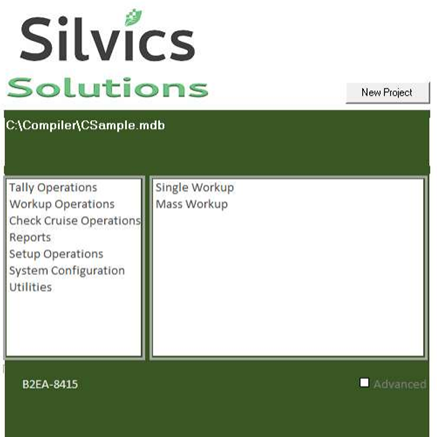
New Project button
- To begin a new project, select New Project in the top right corner.
- Enter the name for the project, and the project .mdb file will be saved in the specified directory.
Mass Workup
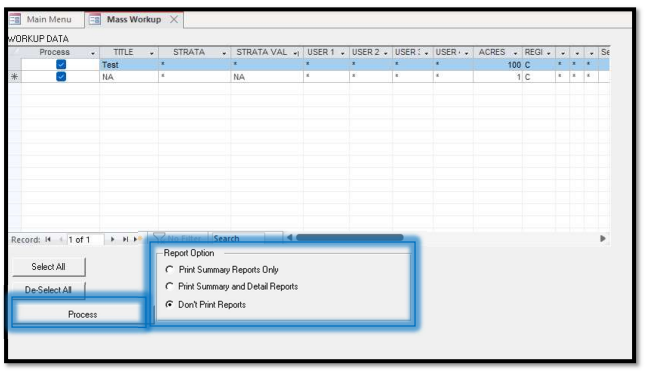
- To finalize the results of more than one set of cruise data, select Workup Operations > Mass Workup.
- Adjust the parameters as needed in the WORKUP DATA.
- Select applicable Report Option, and then select Process.
Tally Operations
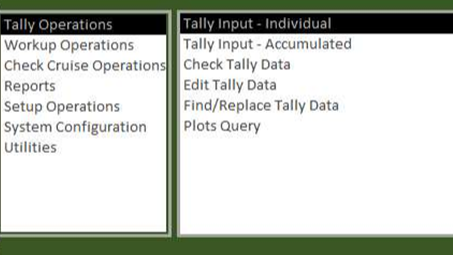
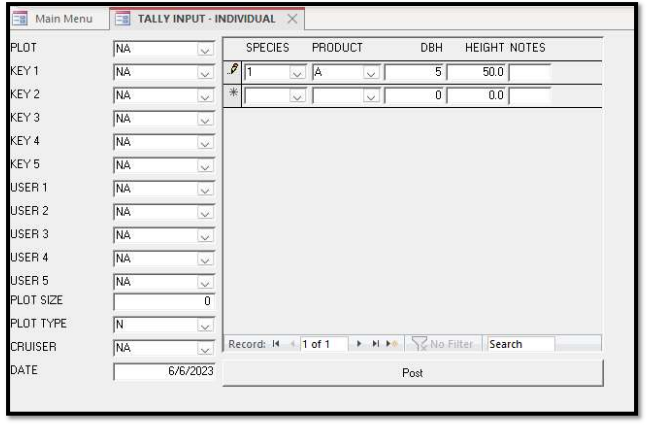
- To enter cruise data, select Tally Operations > Tally Input – Individual (shown top right).
- Enter cruise data one record at a time.
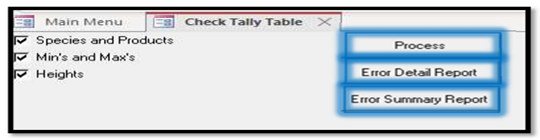
- To quality check the cruise data, select Tally Operations > Check Tally Data (middle right).
- Check/uncheck the parameters as needed.
- To process data, select Process.
- To view error details, select Error Detail Report.
- To view error summary, select Error Summary Report
- To modify the cruise data, select Tally Operations > Edit Tally Data.
- Edit the cruise data as needed.
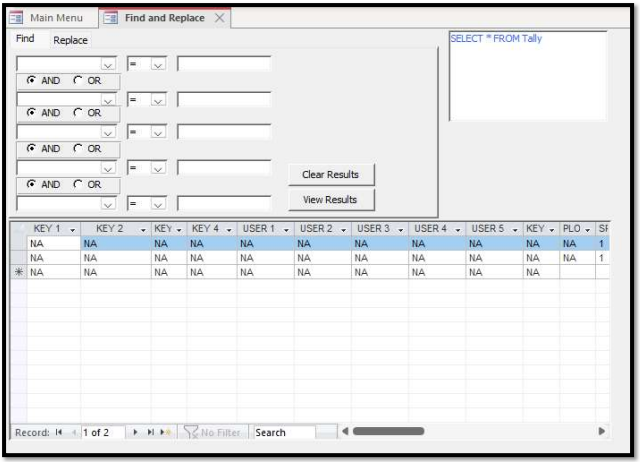
- To search the cruise data, select Tally Operations > Find/Replace Tally Data (bottom left).
- This is useful for searching cruise data by specified criteria.
Workup Operations
- To finalize the results of the cruise data, select Workup Operations > Single Workup.
- Adjust the parameters as needed in the Setup.
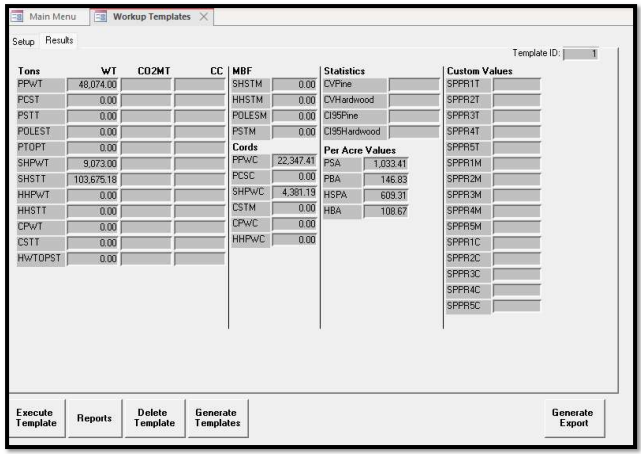
- To retrieve the results, select Execute Template (bottom-left corner).
- Depending on the nature of the resulting prompts, the cruise data (from Tally Operations) and/or cruise job parameters (from Setup Operations) might need to be adjusted for the Workup to run successfully.
- To view the results, Select Results (top-left corner).
- To view various reports, select Reports.
- To create a file for exporting to another system, select Generate Export (bottom-right corner).
Setup Operations
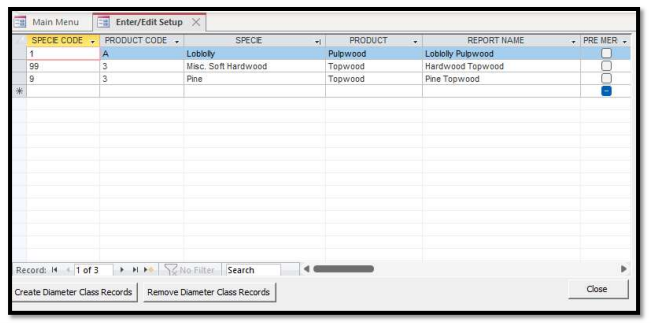
- To define cruise job parameters, select Setup Operations > Edit Setup.
- Enter setup data as defined by cruise job control document (or equivalent).
Utilities
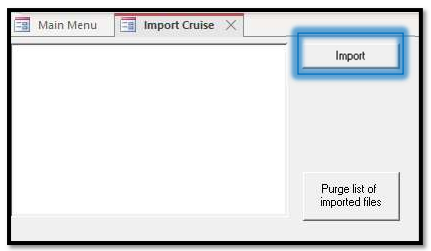
- To import cruise data from an existing comma delimited (.csv) file, select Utilities > Import Cruise.
- Select Import.
- Appending will add new records to any existing records.
- Select file from applicable directory.