

Inspection Workflow
Overview
This inspection workflow outlines how field personnel use a mobile application to document and submit various types of forestry inspections, such as harvest, reforestation, or storm damage assessments. It guides users through signing in, selecting inspection types and properties, linking inspections to timber sales, and completing detailed forms with images, comments, and condition reports. The process ensures consistent, accurate data collection, even in offline conditions.
Need More Help?
For personalized assistance tailored to your specific needs, speak with a knowledgeable customer service representative.
Workflows
Completing an Inspection
Begin by logging in with your Username & Password.
Step 1: Once signed in, tap the Create New button next to “My Requests” and choose
Inspection Type.
- Inspection Types may include:
- Planting Inspection (Reforestation)
- Harvest Inspection (Timber Sales)
- Hurricane Inspection (Timber Salvage)
- Silvicultural Activity – HWC, Controlled burn, Invasive species, etc…
Step 2: After choosing the Inspection Type, you will select the property you are performing the inspection in.
Step 3: Upon selecting the property, you will also be able to associate this inspection with a Timber Sale that exists in Office.
Step 4: Once this is associated with an Office Timber Sale, you will have the option to
select which Stands from the Timber Sale you would like to perform the inspection on.
- If you do not wish to associate this inspection with either of these, you may tap the “Skip” button at the top of the form.
Step 5: Finally, you will be taken to the Inspection form where you may attach images, mark for attention, record percent completed, assign the land ID, and enter comments.
Step 6: Enter inspection-specific info in the space provided further down the form.
For example, the steps of a Harvest Inspection:
- Choose the Inspection Type (Harvest Inspection)
- Pick a Property and an Inspectable entity from the given list.
- Add images, comments, and complete the Inspection
- Enter Property header information.
- Grade the conditions of the roads.
- Enter harvesting information.
- Enter SMZ information.
- Note trash, i.e. Oil & Grease Containers
- Finally, enter information regarding your Security Tags / Load Tickets.
- Make sure to tap “Submit Inspection” once completed.
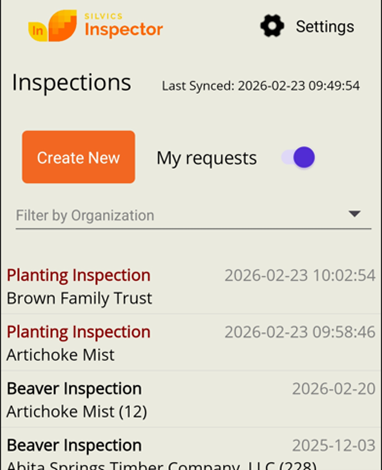
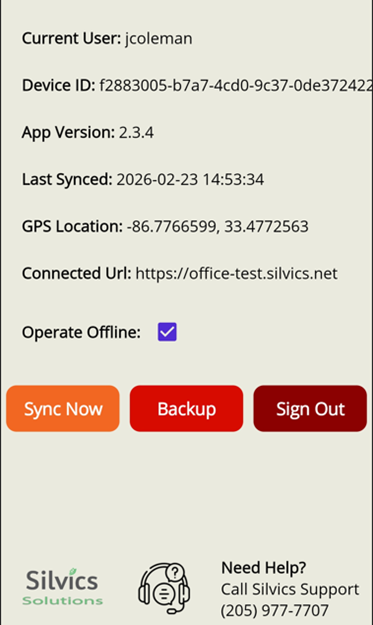
NOTE: Operate Offline Mode is set by default for use in areas with poor cellular coverage. Unsynced inspections appear listed in red text. Remember to Sync your data once you return to an area with a strong cell signal or wi-fi connection by tapping Sync Now in Settings.
Unsynced Inspections
Settings
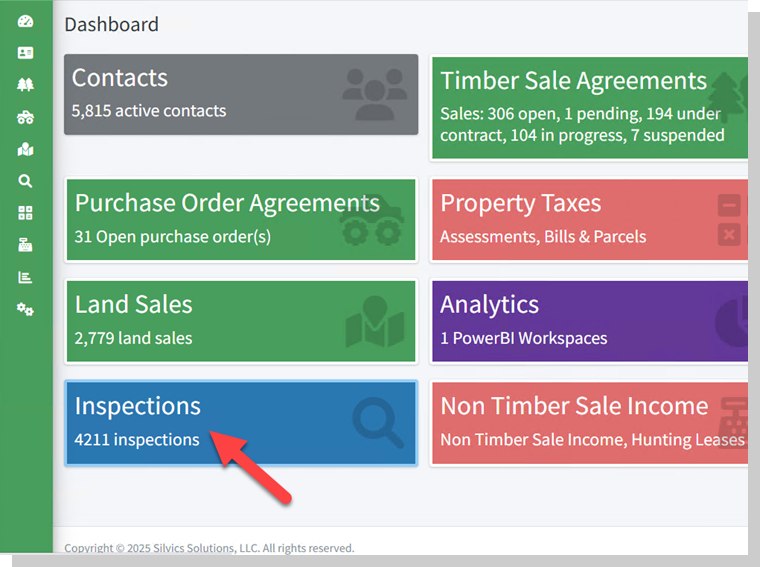
Saved Inspections will be uploaded to Silvics Office https://office.silvics.net/
Inspectable activities should have a status as listed below:
Timber Sale Status:
- Pending
- In Progress
- Prescribed
- Suspended
PO Activity Status:
- Prescribed
- Under Contract
- In Progress
- Suspended
If you have any questions, contact Silvics Support 205-977-7707 | support@silvics.com